Printable Guide
How to Print Labels at Home: Settings, Test Print and Alignment Fixes
How to print labels at home on any inkjet or laser printer: set Actual size, pick the Labels paper type, run a plain-paper test and fix misaligned text.
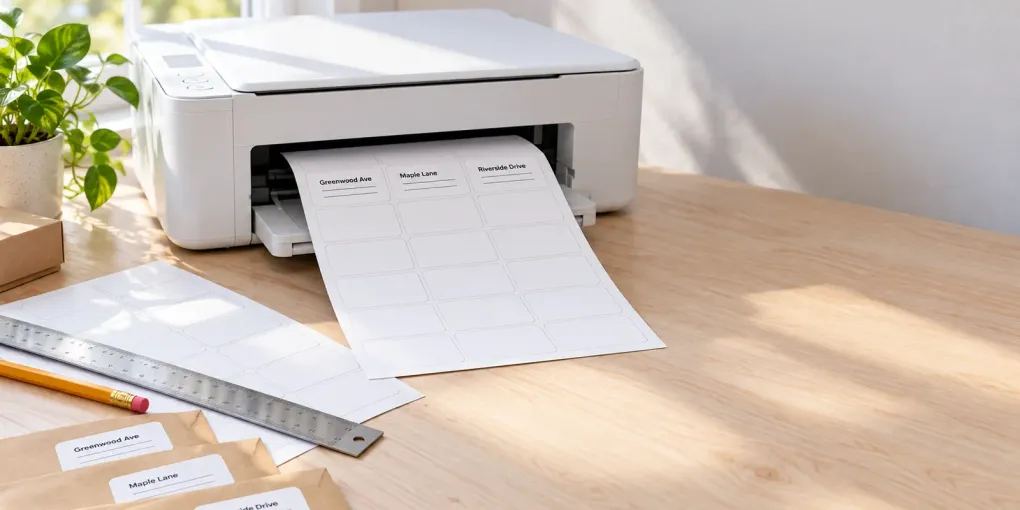
Short answer: to print labels at home, match the template to the code on your pack, print the file at 100% / “Actual size” (never “Fit to page”), set the printer’s paper type to Labels (or heavyweight), print one test page on plain paper and hold it against the label sheet up to a window. If everything is off by the same amount, shift the layout by that amount. Only then print on the real sheet, once.
Most guides on how to print labels at home stop at “pick a template in Word”. This one covers the parts that decide whether the text lands inside each label: the exact setting names in Acrobat, Chrome and Edge, which printer options matter, how to tell a scaling error from a fixed offset, what to do with half-used sheets, and what to check when sheets jam. It works for any die-cut sheet on US Letter or A4, from a 30-up address sheet to round jar labels. Updated 2026-10-16.
How to print labels at home in 7 steps
- Read the code on your pack (for example 5160, 8160, L7160, 3474). Pick the same code in your template. Same-size labels can have different margins, so the code matters more than the size.
- Make a PDF at the exact paper size (US Letter 8.5 × 11 in or A4 210 × 297 mm). In PrintMigo’s free label maker the sheet code sets the grid, margins and paper size for you.
- Open the PDF and choose Actual size / 100%. Turn off Fit to page and Shrink oversized pages.
- Set the paper type to Labels (or Heavyweight / Cardstock if there is no Labels option) and the quality to Best or High.
- Print page 1 on plain paper. Lay it over a label sheet and hold both against a bright window.
- Fix any shift (see the alignment section below), then reprint the test.
- Load the label sheet and print once. Let the ink dry or the toner cool before you peel.
Avery’s own guide gives the same core advice: choose the matching template, print at 100%, set the paper type to Labels or Cardstock, and test on plain paper first (Avery: how to print labels).
How to print labels at home with the right scaling setting
The single most common reason labels don’t line up is page scaling. A label grid is cut to the millimetre; if the print dialog shrinks the page by even 1%, the error grows toward the bottom and right of the sheet. Avery’s printer-settings page tells you to set scaling to 100% or Actual Size (Avery: recommended printer settings).
| Where you print from | What to choose | Notes |
|---|---|---|
| Adobe Acrobat / Reader | Print → Size → Actual size | Adobe describes Actual size as printing without scaling. “Fit” scales to the printable area; avoid it (Adobe). |
| Microsoft Edge | Print → scale Actual size (not “Fit to printable area”) | Edge offers Fit to printable area, Actual size and Custom (Microsoft). |
| Google Chrome | Print → More settings → Scale: 100 | Avery’s Chrome guide also says to click “Print using system dialog” and set Labels in the printer properties (Avery). |
| Safari / macOS | Download the PDF and open it in Adobe Reader | Avery recommends Reader over the browser preview for Safari (Avery). |
| macOS Preview | Print → Preview section → Scale: 100%, leave “Scale to Fit” off | Apple lists Scale and Scale to Fit under the Preview section of the print dialog (Apple). |
Menu names move between versions, so look for any option that says “fit”, “shrink” or “scale to” and switch it off. If your viewer won’t show a 100% option, Avery’s fallback is to print through the system dialog.
In PrintMigo’s label maker you can also use the Print button, which sends the sheet to the browser at paper size with zero page margin, or Download PDF and print that file from Reader.
Printer settings for printing labels at home
Printing labels at home is gentler on your printer if you tell it what it is feeding.
- Paper type: Labels. If your printer has no Labels option, choose Heavyweight or Cardstock. Avery lists Labels, Heavyweight, Matte Photo or Cardstock as the options to try, and Best or High quality to avoid misalignment.
- Paper source: manual feed or rear tray if you have one. It gives the straightest paper path and prevents the printer grabbing a thick sheet badly.
- Tray handling (Avery): fan the sheets, keep the guides snug, fill the tray only half to three-quarters full, and if you print one or two sheets put about 20 plain sheets underneath.
- Match the sheet to the printer. Use inkjet labels in an inkjet and laser labels in a laser: laser heat can melt the adhesive on inkjet-only stock, and an inkjet may smear on laser stock.
- Don’t reprint on the same sheet. Each sheet should go through the printer once, because a second pass can curl or peel labels and leave adhesive on the rollers.
Which way up do you load labels?
It depends on the printer, and manufacturers differ by model: Brother’s laser manual slot and Canon’s rear tray take the print side up, while HP’s pages give different answers for different LaserJet models. Don’t guess: mark a plain sheet with an arrow and the word “TOP”, print a test page, and see which side printed and which edge entered first. Avery suggests exactly this.
How to print labels at home without misalignment
Do the test print before you use a real label sheet.
- Print page 1 on plain paper at 100%.
- Place it on top of an unused label sheet, edges squared, and hold both up to a bright window.
- Check the top-left, middle and bottom-right labels, not just the first one.
- Compare what you see with the table.
| What you see | Likely cause | Fix |
|---|---|---|
| Every label is off by the same amount | Fixed offset (paper pickup, printer margins) | Nudge the layout: in PrintMigo set Move right / Move down in 0.5 mm steps (negative = left/up) |
| Top row is fine, the error grows toward the bottom and right | Page was scaled (Fit to page, Shrink, wrong paper size) | Set Actual size / 100% and the correct paper size, then print again |
| Shift is different every time | Feed problem: skewed sheet, loose guides, fast print speed, no manual feed | Use manual feed, snug the guides, choose higher quality; A-one’s Japanese FAQ lists print speed as a cause |
| Text hits the label edge or is cut off | Too close to the edge, or wrong template | Keep text inside the label; check the code on the pack |
| Text lands in the gap between rows | Template for a similar size (for example 70 × 35 instead of 70 × 37 mm) | Choose the exact code printed on the pack |
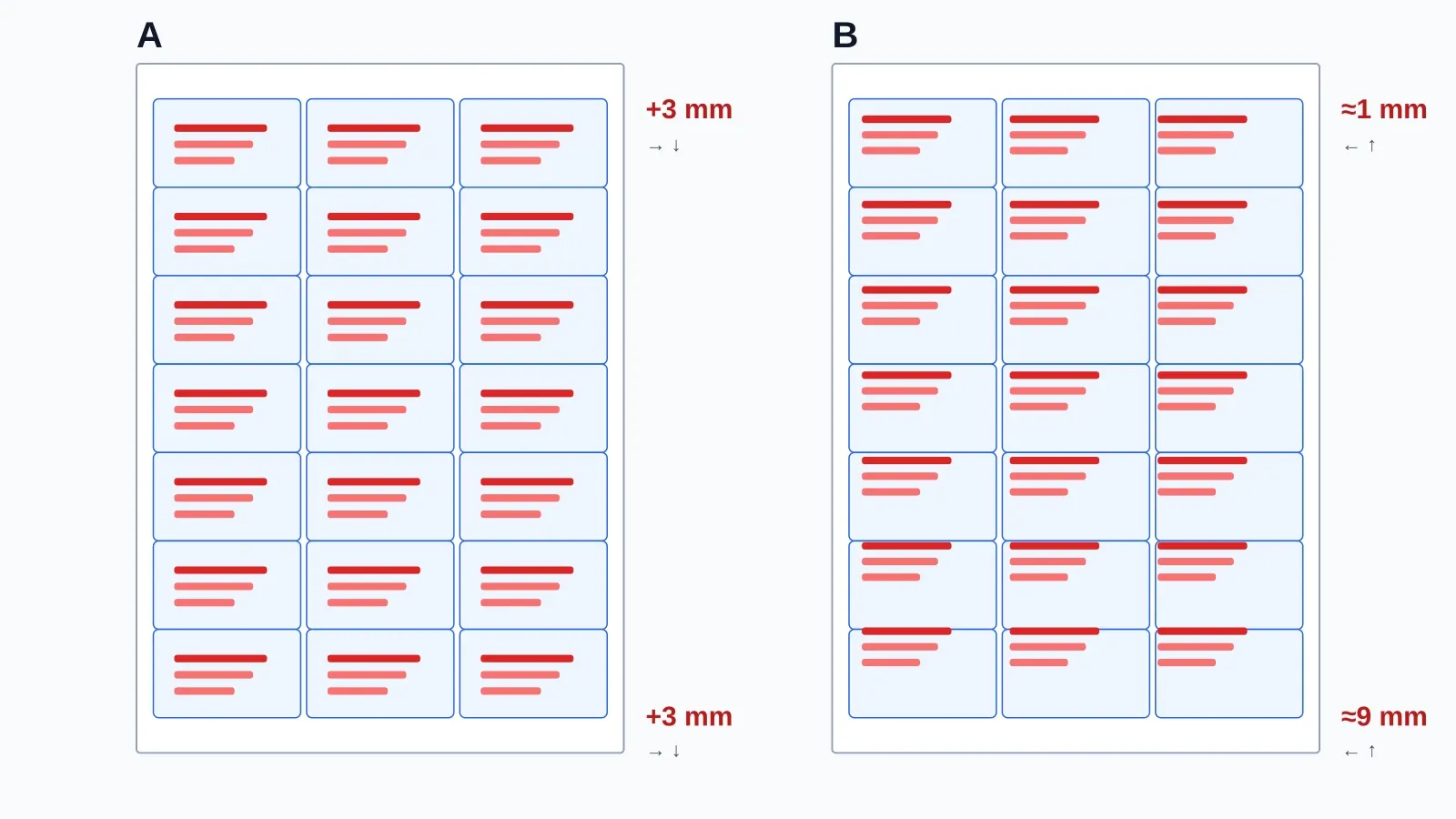
A: a fixed offset, the same everywhere, fixed with a nudge. B: scaling, which grows down the page and is fixed by printing at 100%. Fix scaling first, then offset.
A rule of thumb for the nudge: 1 mm is about 1/25 in. Change the value by the amount you measured on the window test, then reprint the plain-paper page. A printer’s built-in head alignment or calibration cycle is a different thing; it improves print quality, not where the page sits on the label.
Margins: why the edges of a label sheet don’t print
Home printers can’t print right to the paper edge. Epson’s specification pages list a 3 mm (0.12 in) minimum on all four sides for bordered printing on models such as the XP-5200, and some models keep a bigger bottom margin (Epson). Check your own model’s specification.
What this means for labels:
- Keep text about 3 mm (⅛ in) inside the label edge. Avery’s blog gives a 7 pt minimum for readable type; the 3 mm inset is our rule of thumb, and the label vendor 4over4 gives the same ⅛ in.
- Sheets with no side margin (many 70 × 37 mm 24-up and generic A4 grids) have labels touching the paper edge. The label itself is fine, but colour that runs to the edge will show a white strip.
- Dark backgrounds are risky. A black or coloured fill that is meant to reach the die cut will leave a thin white rim if your printer drifts 0.5 mm. Use white backgrounds or thin borders for sheets you print at home.
Can you print on a partly used label sheet?
You can, but it is a risk. Avery says not to use sheets that already have labels removed, because exposed backing and peeled edges can jam the printer (Avery: paper jams). If you still want to finish a sheet:
- Set Start at label # so the used positions stay blank. Labels are counted left to right, then top to bottom.
- Check that the remaining labels are flat and fully stuck down.
- Use the manual feed or rear tray, one sheet at a time.
- Don’t use the sheet if any label is lifting.
For mailing lists and return addresses, it is cheaper to print the right number the first time: use Fill the whole sheet to make one address fill every free label.
If label sheets jam: quick checks
- Wrong paper type: set Labels or Heavyweight.
- Partly used or curled sheet: replace it.
- Guides loose, tray overfilled, or no fanning: fix and retry with fewer sheets.
- Worn rollers: Avery suggests cleaning rollers with canned air if sheets slip.
- Wrong label stock for your printer type: inkjet-only labels in a laser printer can curl and peel.
- Humid storage: Avery recommends about 60–77 °F (16–25 °C) and moderate humidity, and letting labels adjust to room conditions for 24–48 hours (Avery: heat and humidity).
Mistakes to avoid when you print labels at home
- Printing straight from the browser preview with “Fit to page” on.
- Picking a template by size instead of the code on the pack.
- Setting Letter in the dialog while A4 sheets are in the tray, or the reverse.
- Skipping the plain-paper test.
- Putting text within 1–2 mm of the label edge.
- Loading the sheet upside down because “most printers do it this way”.
- Printing the same sheet twice.
- Peeling inkjet labels before the ink has dried.
Ask an AI how to print labels at home
You can get faster answers if you give the AI your printer type, paper size and label code. For example:
“I have Avery 5160 labels on US Letter and an inkjet printer. How do I print labels at home so the text lines up, and what scale setting do I use in Chrome?”
Then check the menu names against your own screen and run the plain-paper test. An AI can describe the usual steps but can’t see your printer driver’s actual options.
Which tools help you print labels at home
- Any label sheet, any list: PrintMigo’s free label maker. Pick your sheet code, type one label per line, download the PDF and print at 100%.
- Envelope addresses: the address label maker imports a list from Excel or CSV and sets up 5160, 5163 and L7160 sheets.
- Not for thermal printers. If you print 4 × 6 in shipping labels on a Dymo, Brother or Rollo thermal printer, use the maker’s own software.
Both tools run in the browser, without sign-up and without a watermark.
How to print labels at home: FAQ
How do I print labels at home on a regular printer? Pick the label sheet code, make a PDF at the exact paper size, print it at 100% / Actual size, set the paper type to Labels, test on plain paper, then print on the real sheet once.
What setting should I use to print labels? Scaling 100% (Actual size), the right paper size (Letter or A4), paper type Labels or Heavyweight, and Best or High quality. Turn off “Fit to page” and borderless printing.
Why are my printed labels crooked or off center? If every label is off the same way, it is an offset: nudge the layout. If the error grows toward the bottom, the page was scaled; print at 100% instead. If it changes each time, check the feed and use manual feed.
Which way do I load label sheets in my printer? It varies by printer. Print a test on plain paper marked with an arrow and the word “TOP”, then see which side printed and which edge went in first.
Can I print labels without Word? Yes. Use a label maker that downloads a PDF at paper size, then print it from your PDF viewer or browser. You don’t need Word, mail merge or an account.
Can I print on a sheet with some labels already removed? It isn’t recommended, because exposed backing can jam the printer. If you do, use Start at label #, a flat sheet and manual feed.
Can I use inkjet labels in a laser printer? No. Use inkjet-specific labels in inkjets and laser-specific labels in lasers; the heat of a laser can damage inkjet-only stock.
How do I print labels at home so they don’t smear? Choose the paper type Labels, use matching label stock, and let inkjet labels dry before peeling or stacking.
Ready to print? Open the free label maker, choose your sheet code, download the PDF and print a plain-paper test. For envelopes and mailing lists, try the address label maker. No sign-up and no watermark.