Classroom Seating Chart Maker Random seats that follow your rules
Make a classroom seating chart in a few minutes: paste your class list, choose rows, desk pairs, groups or a U-shape, and shuffle seats so talkers sit apart and students who need it sit in the front row. Every name prints on its desk. Print a wall copy and a teacher's-view copy on Letter or A4. Free, no account, no watermark, and student names never leave your browser.
Rows · Pairs · Groups · U-shape · Keep-apart rules · Teacher & student view
See how the rules workBuild your classroom seating chart
The editor opens with 30 desks in five rows, a sample class of 26 and the rules panel open. Paste your own class list, pick a desk layout, add any front-row or keep-apart rules and press Shuffle with rules. Drag a name onto a desk to fine-tune it.
Use one name per row, or columns such as First name, Last name and Table. A Table column (3, Table 3 or a table name) seats guests straight away. The file is read in your browser and never uploaded.
Seating rules, rotation and chart view
Rules are used by Random assign and Shuffle with rules. Type names as they appear in the list; a first name alone works when it is unique.
Rotation keeps desk partners and groups together and moves the back row to the front, so every student gets a turn near the board.
Print one chart for the wall (board at the top) and one for your desk or a substitute (board at the bottom).
Seating Chart Maker template library
Choose one Seating Chart Maker template. The template library is grouped by use case, and every template keeps the same order across languages.
Wedding & Reception
Classroom
Event & Meeting
Layout settings
Add chart elements
Table names
Rename tables, rows or groups, for example “Family”, “Friends” or “Row A”. Leave a field empty to keep the default name.
Export settings
Export resolution: 300 dpi. Large poster sizes use a lower dpi so the file stays small enough for your browser; text and lines stay sharp at viewing distance. Take the PDF to a print shop for posters.
Printable Seating Chart Maker preview
Drag a name onto a seat, or drag chart elements to adjust the layout.
Unassigned names
0Classroom seating chart maker: quick facts
What it does, what it prints on and what it leaves to you.
- Price
- Free, with no paid tier or download fee
- Account
- Not required
- Watermark
- None
- Export formats
- PDF, PNG and direct printing; the optional second view prints as page 2. The class list with seat groups downloads as CSV
- Paper sizes
- US Letter and A4, landscape; poster sizes 18 × 24 in, 24 × 36 in and A2 for a wall chart
- Supported sizes
- Rows, desk pairs and U-shape: up to 12 rows of 12 desks; groups: up to 12 groups of 12; the preset is 5 rows of 6 desks (30 seats)
- Privacy
- Student names stay in this browser tab; the draft is saved in this browser’s local storage and is never uploaded
- Languages
- 8 languages: English, Chinese, Spanish, Portuguese, French, German, Japanese, Korean
- Desk layouts
- Rows of single desks, rows of desk pairs, groups (pods) of 2–12 desks and a U-shape (horseshoe), each with board, teacher’s desk and door
- Seating rules
- Front row, keep apart (pairs or whole groups) and sit together; the tool reports any rule it cannot meet in the current layout
- Rotation
- Move everyone back one row or shift each desk pair or group sideways, keeping partners together
- Views
- Board at the top (student view) or at the bottom (teacher’s view), or both copies in one PDF
- Class size reference
- NCES reports an average of about 19–22 students per class in US public schools (2020–21); England’s primary average is 26.4 (DfE 2024/25)
- Last updated
- October 27, 2026
Best for
- Teachers who want a printed chart for the first day, a new term or a seat change
- Substitute plans: a teacher’s-view copy matches what the sub sees from the front of the room
- Classes where a few students must sit apart or near the board
Not the best fit for
- Student photos on the chart or attendance tracking
- Rooms with more than 144 desks on one chart
- Automatic seating by grades, behaviour data or IEP files; you decide who goes in the front row
- Live seating that syncs with a gradebook or LMS
How it compares
- Seating Chart Maker app (seatingchartmaker.app)
- Offers keep-apart and front-row rules, photos and a teacher/student flip. Its site describes a 7-day trial with watermarked prints and then a monthly plan. This page has no trial or watermark but no photos.
- ClassroomScreen
- Has seating templates, a randomizer and a group maker inside a classroom display tool. Choose it if you already project ClassroomScreen; use this page for a printable chart with keep-apart rules.
- TPT, Canva and Word templates
- Give decorated layouts, but you type each name into a box and reshuffling means retyping. Use them for the artwork; use this page to place students and reshuffle in one click.
A classroom seating chart with names on every desk
Desk layouts, seating rules and two printed views from one class list.
Pick the desk layout your room really has
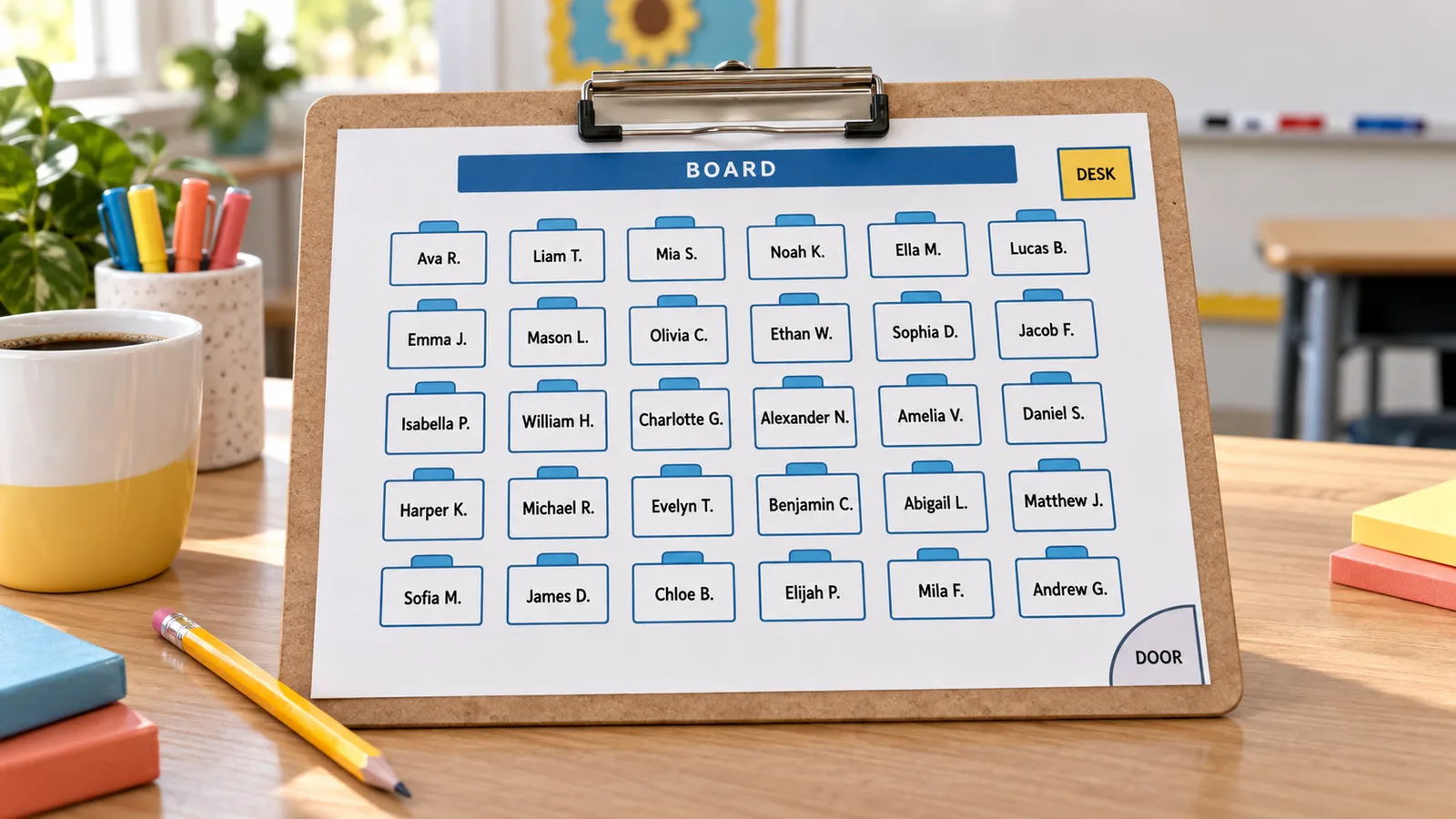
Start with rows of single desks, rows of desk pairs, groups of four or six, or a U-shape. Set the number of rows or groups and the desks in each, and the board, teacher’s desk and door are drawn for you. Each student’s name prints on the desk itself in large type, so the chart reads at a glance from the front of the room.
Shuffle seats with rules you control
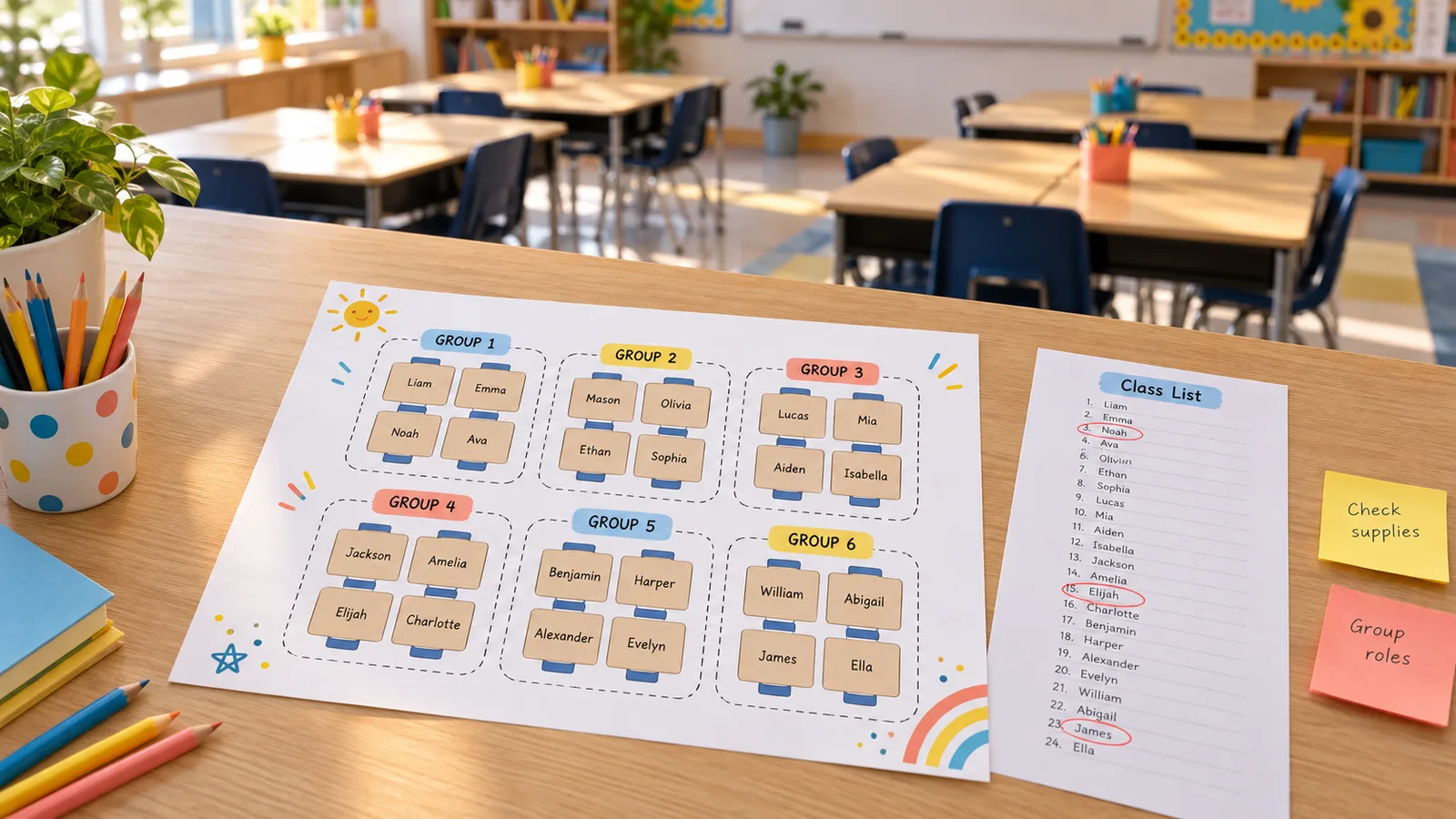
List students who should sit in the front row, pairs or groups who should be kept apart, and buddies who should sit together. Shuffle with rules tries many random arrangements and keeps one that meets them all, or tells you which rules the layout cannot fit. Rotate the class one row back or one desk group sideways when it is time to change seats.
Print a wall copy and a teacher’s view
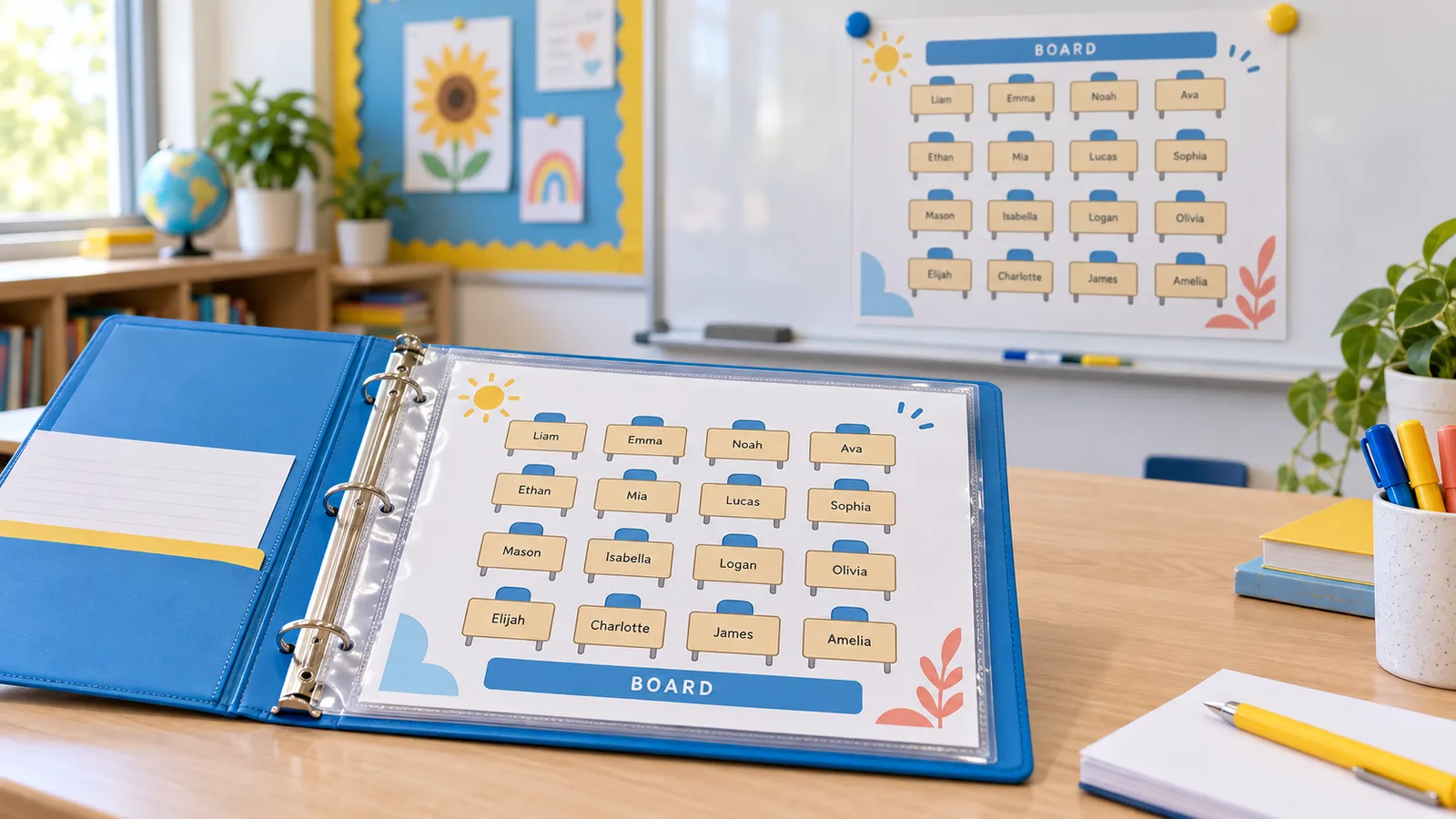
Students read the chart with the board at the top; from the front of the room the teacher sees the class the other way round. Tick the second view and the PDF holds both: post one copy on the wall and keep the teacher’s view on your desk or in the sub binder. Letter and A4 print at 300 dpi, with no watermark.
What this classroom seating chart maker includes
Everything to seat a class and print the chart, without an account.
Paste or import a roster
One name per line, or a CSV with First name and Last name columns from your gradebook export.
Four desk layouts
Rows, desk pairs, groups and U-shape, plus extra desk groups, a board or a teacher’s desk you can drag anywhere.
Rule-based random seating
Front row, keep apart and sit together, with a clear note when a rule cannot be met.
Seat rotation
One row back or one group sideways, keeping desk partners together.
Two views, one PDF
Student view and teacher’s view on Letter or A4, plus PNG and direct print, no watermark.
Private by default
Student names are processed in your browser and never uploaded.
How to make a classroom seating chart, step by step
From a class list to a printed chart for the wall and the sub binder in about five minutes.
Paste your class list
Copy the names from your roster or gradebook and paste one per line, or import a CSV. First name plus last initial keeps desks readable. To seat A–Z by last name, write names as “Lee, Grace”. The summary box warns you about duplicate names.
- A CSV with First name and Last name columns is combined into one name per desk.
- Leave the sample class in place to try the rules first.
Choose a desk layout
Open the template library and pick rows, desk pairs, groups or U-shape, then set the rows or groups and desks in each under layout settings. Research reviews find rows suit independent work and groups suit discussion, so many teachers switch layouts by unit.
- Use rows of 6 desks for 30 students, or 6 groups of 4 for 24.
- Drag the board, teacher’s desk or door to match your room.
Add front-row and keep-apart rules
In the rules panel, list students who need a front seat (for example preferential seating in an IEP or 504 plan), pairs or groups to keep apart, and buddies to seat together. Press Shuffle with rules; it reports any rule it could not meet so you can fix that seat by hand.
- Write one pair or group per line, separated by commas.
- Drag a name onto a desk to swap two students after shuffling.
Print the chart on Letter or A4
Choose Letter or A4, tick the second view if you want a teacher’s-view copy, and download the PDF. In the print dialog choose landscape and Actual size (100%). Plain 20 lb copy paper is fine for a binder; 65 lb cardstock or a sheet protector lasts longer on the wall.
- Print the teacher’s view for the sub binder and your desk.
- PNG works for projecting the chart on the board.
Rotate seats later
When you change seats, use Rotate to move everyone back one row or shift each desk group sideways, or shuffle again with the same rules. Teaching guides commonly suggest a change every few weeks or once a quarter; the draft stays in this browser until you clear it.
- Clear assignments to print a blank chart with desk numbers.
- Download the CSV to keep a copy of the current seats.
Classroom seating chart FAQ
Answers about layouts, random seats, rules and printing.
Yes. Editing, shuffling, the PDF, PNG and CSV downloads and printing are free. There is no account or trial, nothing is stamped on the chart, and student names are processed in your browser and never uploaded.
Paste your class list, pick a desk layout, then press Random assign or Shuffle with rules. Each press gives a new random arrangement using your browser’s secure random numbers. Drag names to adjust single seats, then download the PDF.
Yes. Type each pair or group on its own line under Keep apart, for example “Jack, Ryan”. The shuffle avoids putting them at the same group or at desks that touch, including directly in front or behind. If the layout is too tight, it tells you how many rules it could not meet.
List those students under Seat in the front row and they are placed in the row nearest the board. Preferential seating can also mean away from the door, a window or a friend, so read the plan and adjust by dragging. The tool never reads or stores any IEP data.
There is no single best layout. Reviews of seating research find rows support independent work and reduce disruption, while groups help discussion. For 30 students, 5 rows of 6 desks fit most rooms; for 24, try 6 groups of 4 or a U-shape with 8 desks on each side and 8 at the back.
Both are common. A wall chart for students usually has the board at the top; a chart for the teacher or a substitute standing at the front is easier with the board at the bottom. Choose one view, or tick the second view to print both copies in one PDF.
No rule exists; teaching guides commonly suggest every few weeks or once a quarter, plus whenever a pairing is not working. Use Rotate to move everyone back a row or shift groups sideways, or shuffle again with the same rules.
Yes. Choose a layout and press Clear assignments: every desk shows only a small number, ready to fill in by hand. Download the PDF on Letter or A4, or print directly.
Yes. Save the sheet as CSV and import it. One name per row works, as do columns named First name and Last name. The file is read in your browser, and you can download the class list again with each student’s row or group.
Make your classroom seating chart today
Paste your class list, pick a desk layout and shuffle seats with your rules.
Print a wall copy and a teacher’s view on Letter or A4. Free, no sign-up and no watermark.
Free · No sign-up · No watermark · Letter, A4 and poster sizes